

JMP v18 account creation and authorization
JMP Version 18 requires every user to create their own account, and to authorize that account on each device. (This is a change from previous versions that allowed anyone to use the software wherever it was installed). These individual accounts are free.
On your personal device, smartphone, or computer lab system, follow the instructions below before using the JMPv18 application.
Create a JMP Student Account (first-time use only)
- Start on the student account sign-up page of JMP’s website.
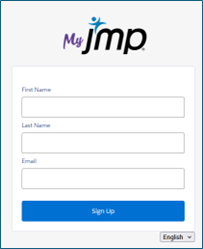
- Enter your first name, last name, and full CSU e-mail address (firstname.lastname@colostate.edu)
- Click “Sign Up”
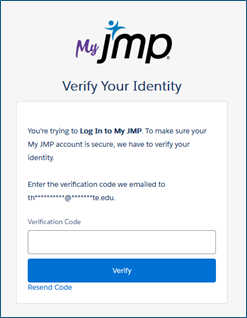
- Check your CSU e-mail for the verification code from sender “no-reply@jmp.com” and insert it into the “Verification Code” field. Click “Verify”.
- Fill out the required fields marked with an asterisk.
- Select “Student” as the affiliation.
- Do not include “Street Address”.
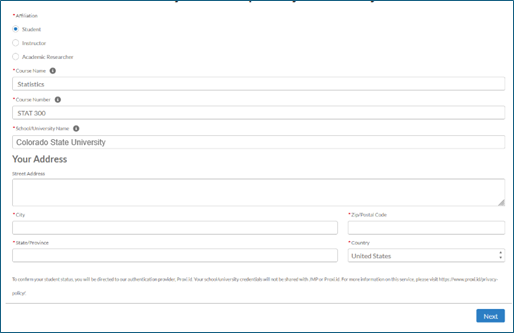
Example form; fill in details based on your own current courses/information. - Verify your academic status by clicking “Start”.
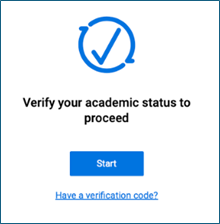
- Type “Colorado State University” in the institution search.
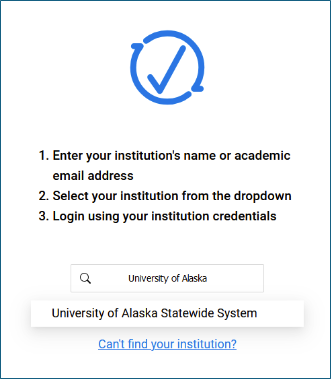
- You will be routed to CSU’s single sign-on (SSO) homepage.
- Use your NetID credentials to log-in and verify your institution.
- Once verified, you may close the browser, or download JMP Student Edition on your personal device.
Authorize JMP with a Student Account (once per device)
- On the lab scanning workstations (MLIB-SCANNER1 through MLIB-SCANNER8), double-click on the “JMP Student Edition 18” application. A window will open, prompting you to authorize the software. Click “OK”.
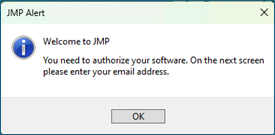
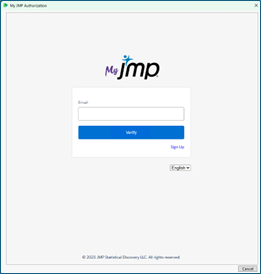
- Another window will open. Enter the e-mail address you used to sign up for JMP. Click “Verify”.
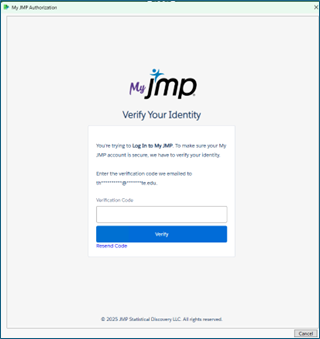
- Find the verification code in your e-mail and insert it into the “Verification Code” field. Click “Verify”.
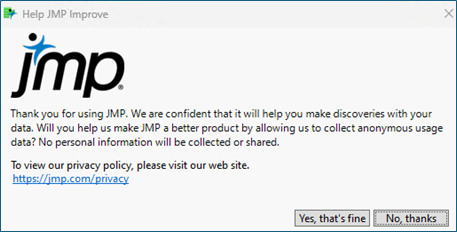
- If the verification code and e-mail match JMP’s records, the following window will appear, asking your permission to collect usage data. Click on “No, thanks”.
-
Notes:
- This JMP authorization is tied to a user profile, meaning you will not have to log-out of JMP before leaving the workstation. Simply close JMP, and the next user will have to repeat the steps above for their own use.
- Each device must be authorized separately; if you move to a different workstation, you will need to repeat the authorization steps on the new workstation.